9. Push Notifications
Push notifications arrive directly on your device - in the browser or, if the app has been added to the home screen, as a real notification of the operating system. They do not replace e-mail, they come on top.
All settings are in the user menu at the top right under "Notifications".
The easiest way is the setup assistant: it appears as a card on the dashboard as long as the device has no active push notifications, and it can be started any time from the "Notifications" page via "Guided setup, step by step".
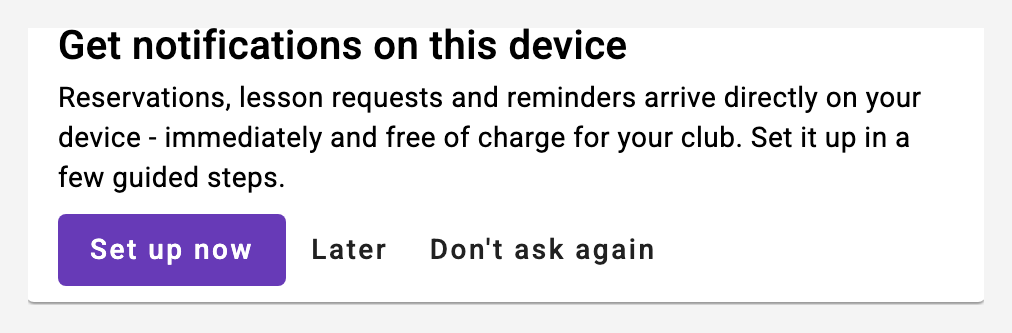
The assistant walks you through installing the app, allowing notifications and a test - before each step it explains what is about to happen and what to choose:
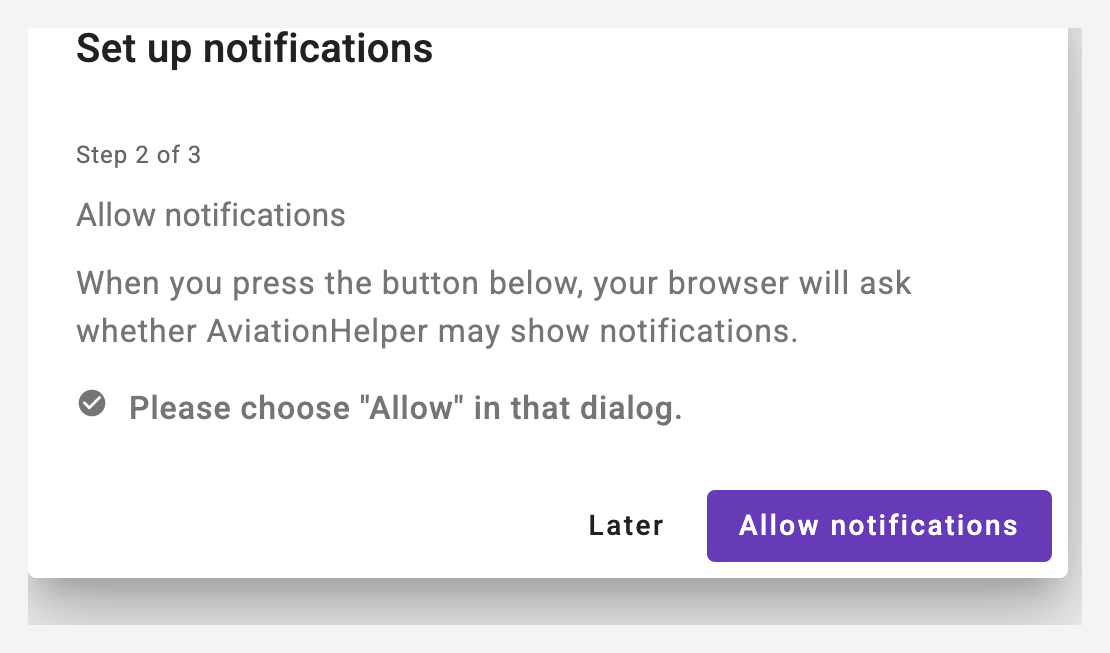
The following sections describe the same steps in detail.
9.1 Installing the app
AviationHelper runs in the browser, but it can also be installed as a standalone app. For push notifications this is the single most important step: a web app running in a browser tab has no identity of its own towards the operating system - its notifications therefore appear under the browser's name and logo. Only the installed app shows up as an application in its own right, with its own name and logo. On iPhone and iPad installing is even mandatory for push; in a Safari tab no notifications arrive at all.
The setup assistant (see above) offers the installation as its first step. One click on "Install app" is enough - the browser does the rest. Afterwards you start AviationHelper like any other app from your home screen, dock or start menu.
The installed app also shows the number of unread messages as a red counter directly on the app icon. The counter disappears as soon as you open the app. (On Android the familiar dot on the app icon takes this role.)
- iPhone / iPad: there is no button here. The app is added via the share icon and "Add to Home Screen".
- Already installed? Then the hint no longer appears, and the card above shows "Active · installed app".
9.2 Enabling push on a device
On the "Notifications" page press "Enable push notifications". The browser asks once whether it may show notifications - this has to be allowed. The card then shows the current state:
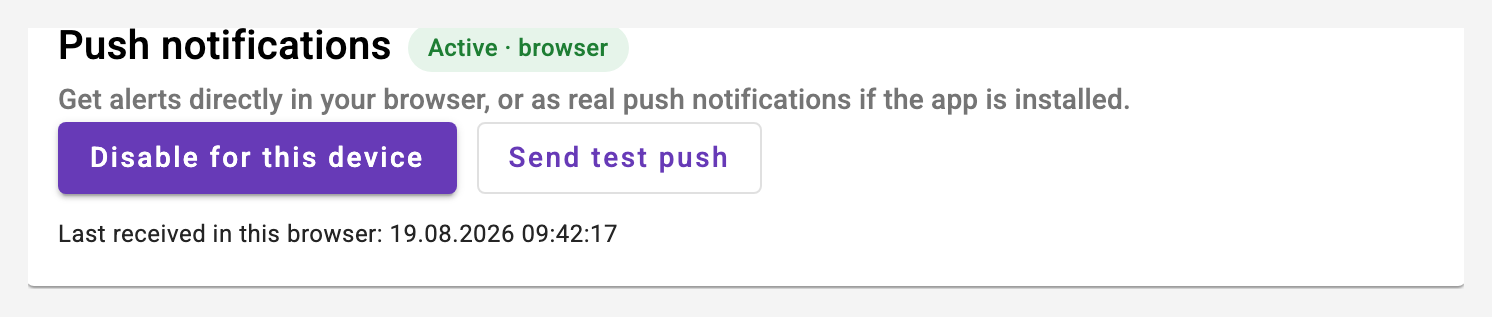
- Active · browser: notifications arrive as long as the browser is running.
- Active · installed app: the app has been added to the home screen and behaves like any other app. On an iPhone this is the only way push works at all.
ATTENTION: push always applies to this one device and this one browser only. If you want notifications on your phone and on your notebook, you have to enable push on both.
The language of the app does not matter, though: once enabled, push stays active even after switching between German and English.
"Send test push" checks the whole chain. The line "Last received in this browser ..." only appears once the message has actually arrived on the device. When it appears, the chain definitely works - but in Safari and in the installed app on iPhone and iPad it sometimes stays empty even though the notification is displayed. What counts then is the notification itself.
No notification arrives
- If "Last received in this browser" shows a current time but nothing is displayed, the operating system is suppressing it. On a Mac go to System Settings → Notifications, select the browser you use and allow notifications (careful: the same browser may be listed more than once - check all entries).
- If the card shows the red hint that the browser blocks notifications for this page, allow them in the browser's site settings.
9.3 Which notifications you want
Clicking a notification opens the item it is about: for a new or changed reservation a summary with the key details (from there it can be edited if needed), for a lesson request the request card on the dashboard.
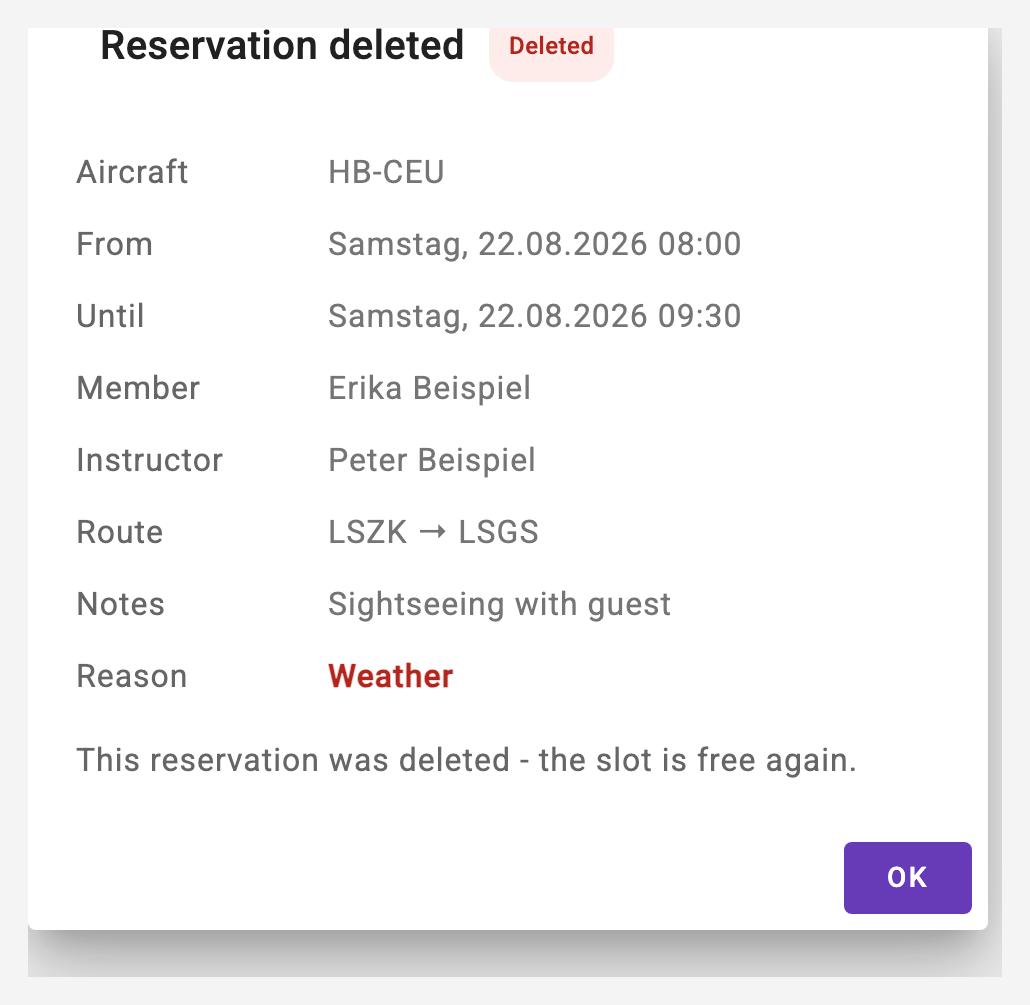
For a deleted reservation the tap shows a summary of the deleted reservation - it can no longer be opened, but you can see exactly what was deleted:
If the app is open at that moment, the message additionally appears directly inside the app as a banner with a "Show" button - most important on iPhone and iPad, where the system does not display notifications for an open app. The dashboard reloads its cards on its own.

Every type of notification can be switched on and off individually:
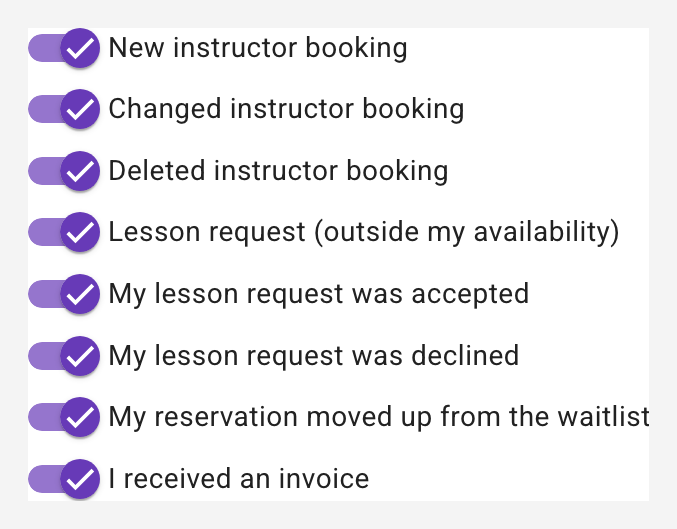
- New / changed / deleted instructor booking: for instructors only - somebody booked you as an instructor or changed or deleted that booking.
- Lesson request: somebody would like to fly with you although you have no availability entered for that period (see chapter 10).
- My lesson request was accepted / declined: the answer to a request you made yourself.
- My reservation was changed or deleted by someone else: the assigned instructor or the club owner adjusted or deleted your reservation - the message names who it was, for a new time the previous one, and when deleting the reason.
- A flight path is ready to add to my lesson: for students - the flight path of a lesson can be added as a map image, including the reminders until the 24-hour deadline; clicking it opens the framing dialog (see 11.13).
- Voucher shop (club owners with the module): a new voucher order, a paid voucher order and a new inquiry via the club website - a click opens the order or inquiry under Vouchers (see chapter 29).
New: I received an invoice - the notification when an invoice is created or re-sent; clicking it opens the invoice directly as a PDF (see 14.4).
Also new: My billing package expires soon - the reminder 30 days before a purchased billing package expires.
9.4 Managing devices
Every device on which push has been enabled appears in the list:
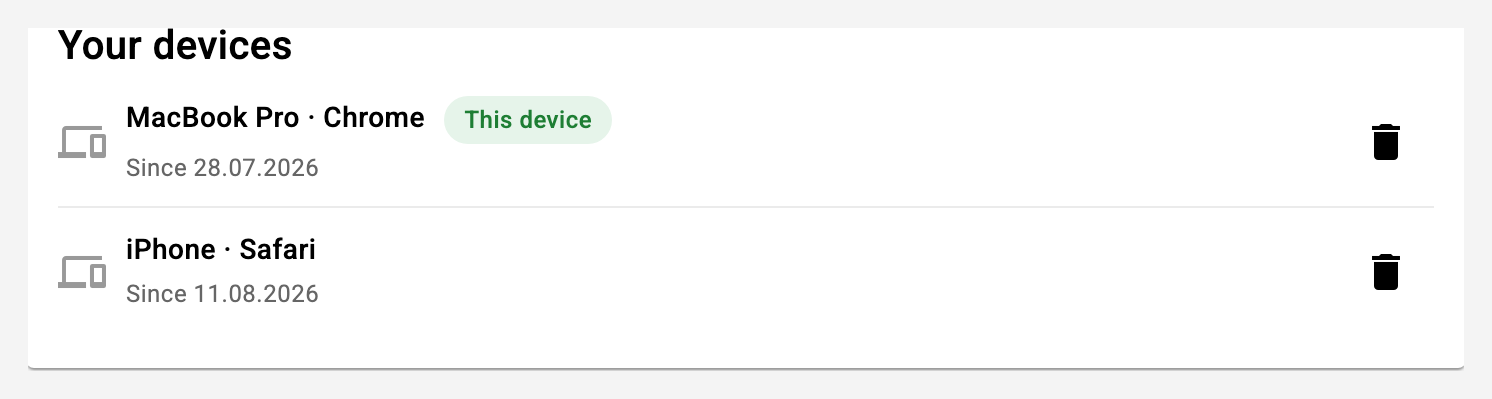
The device you are currently working on is marked with "This device". The bin icon removes the registration; for the current device it is additionally unsubscribed from the push service. A device you no longer use should be removed here - otherwise notifications keep being sent to it.
9.5 E-mail
Below that you find the settings for e-mail:
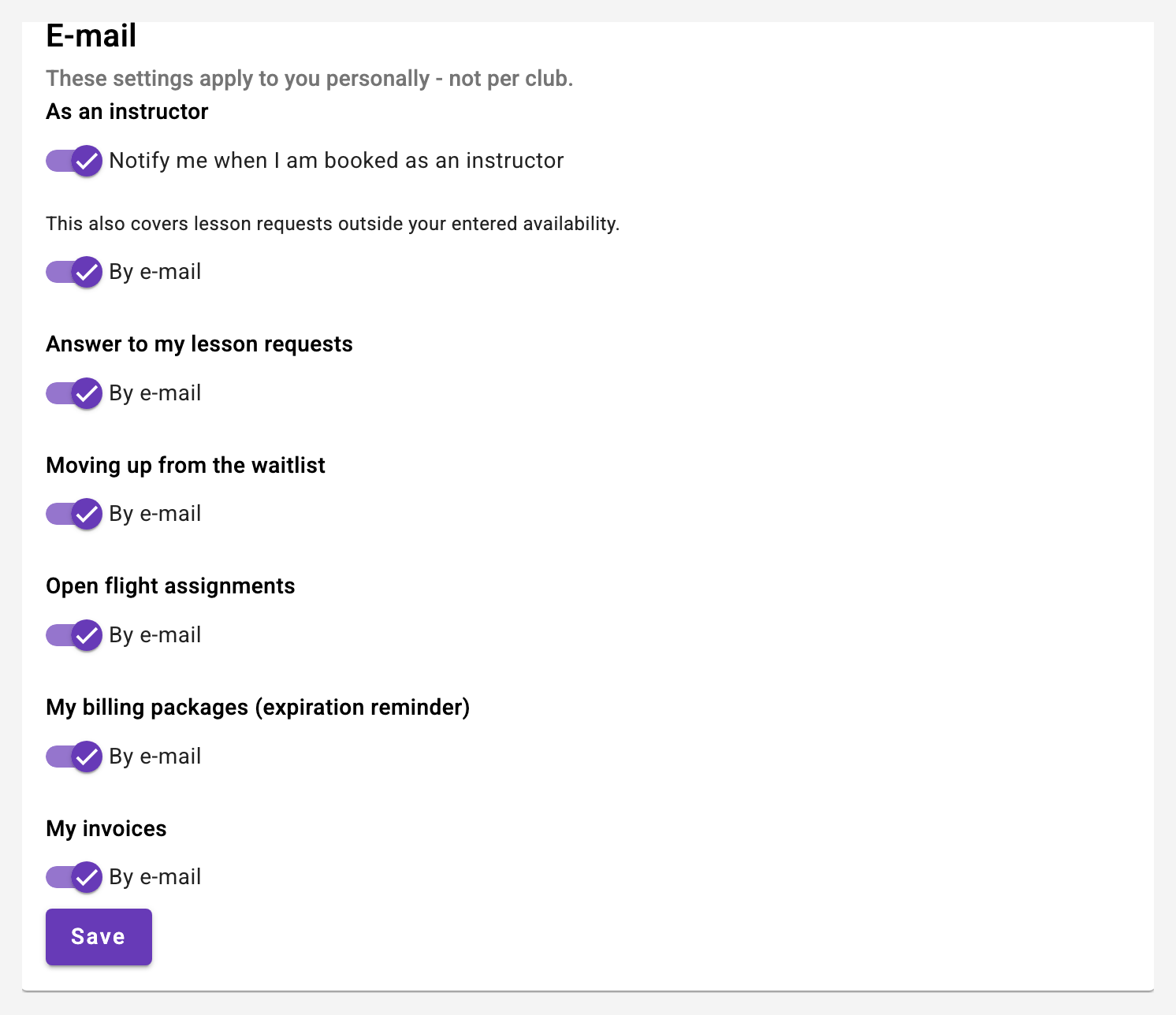
- These settings apply to you personally, not per club. If you are a member of several clubs, you set them once.
- The section "As an instructor" only appears for members with the classification instructor. It covers bookings and lesson requests.
- "Answer to my lesson requests" concerns the answer to your own requests. E-mail is on by default here.
- "My reservation was changed or deleted by someone else" sends the same message by e-mail. On by default.
- "My billing packages (expiration reminder)" concerns the reminder 30 days before a purchased package expires. E-mail is on by default; the matching push notification can be toggled above with the notification types.
9.6 Messages in the app: bell, banners and inbox
Every push notification is first stored in the inbox of your account, regardless of whether a device receives it as a push. That way no message gets lost, not even when several arrive shortly after each other:
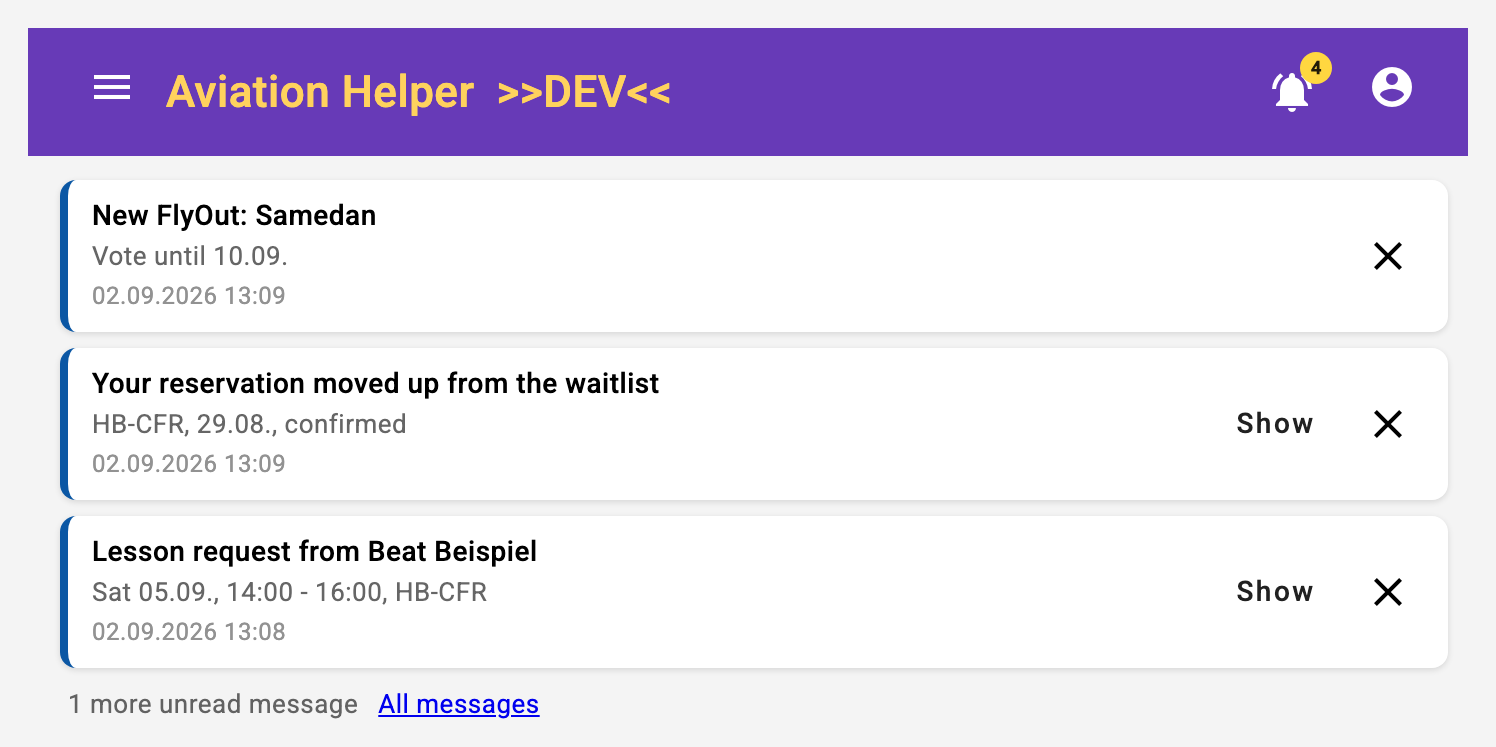
- The bell in the toolbar shows the number of unread messages; tapping it opens the inbox.
- Banners below the toolbar show the newest unread messages, at most three, the rest as "n more". A banner stays until you press "Show" or the X - it does not disappear on its own.
- The inbox on the "Notifications" page lists all messages of the last 90 days, unread ones with a blue dot. "Show" opens the target of the message (the reservation, the request, the invoice), the tick marks it as read without opening it, "Mark all as read" cleans up. Read messages sit collapsed in their own section with a count - so the page stays short.
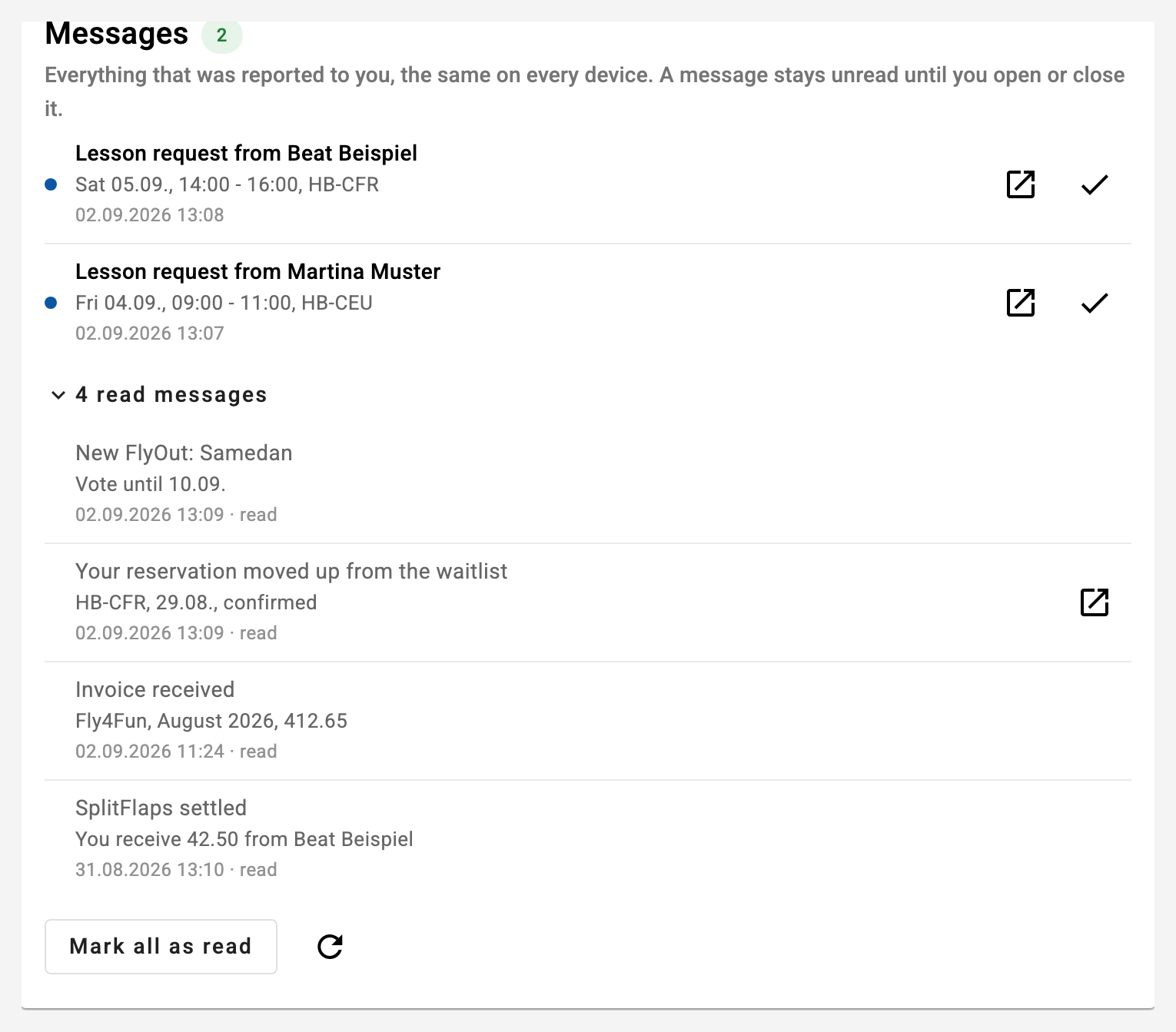
A message counts as read only through one of these actions, never by merely opening the app. The state applies on all devices: what you read on the computer is gone on the phone as soon as the app loads the inbox there - immediately when opened, within a minute while the app is open. The system notification in the phone's notification centre and the counter on the app icon are cleaned up as well, but only the next time the app is opened on that device.
The counter on the app icon (installed app) equals the number of unread messages. If you tap several system notifications shortly after each other, the app opens the inbox instead of only the last target.